

Module 7 — The AI Agent: Using It · Lesson 7.2
Talking to the Agent
Chat, voice dictation, attachments, personas and conversation threads
What you'll learn
- Use voice input, including on platforms with no OS dictation
- Attach documents and have the agent work from them
- Switch personas and start or revisit conversation threads
- Phrase a request so it lands without three rounds of clarification
Most of the difference between people who find the agent useful and people who do not is not prompt engineering. It is knowing what the input surface can accept, and being specific about the two things the agent cannot guess: what you actually want, and what constraints apply.
The composer, and voice
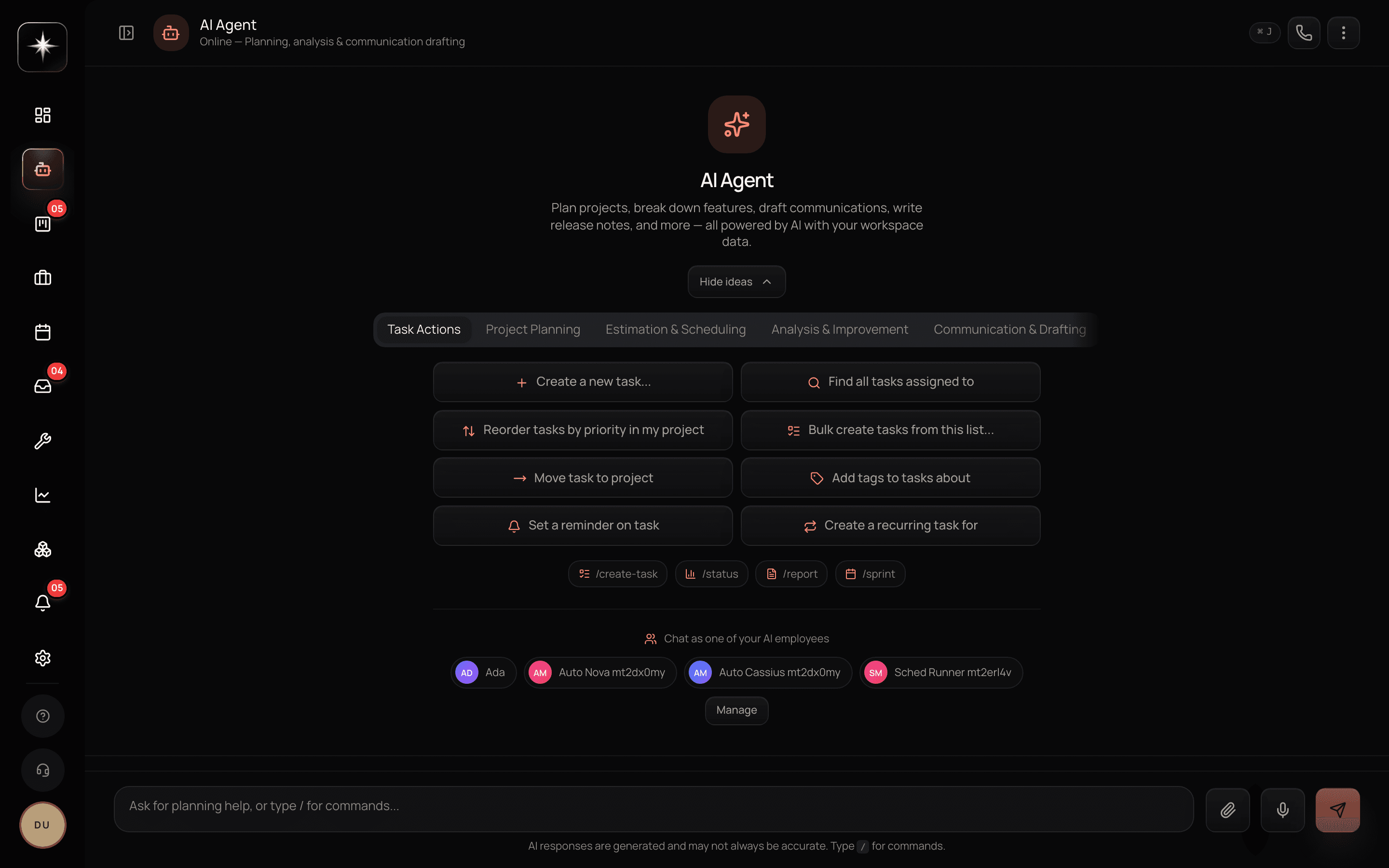
Open AI Agent from the sidebar. Type a request and send it.
The mic in the composer is dictation. Click it, speak — a live preview of the transcription appears above the input as you go — then click it again to transcribe and send. It works in any browser with a microphone, on Windows, Mac, Linux, iOS and Android.
That last point matters more than it sounds. OS-level dictation types into any Kavanah field: Win+H on Windows, the mic key or double-tap fn on Mac, the keyboard mic on iOS and Android, Search+D on ChromeOS. Linux has no universal OS dictation — so on Linux, Kavanah's in-chat mic is the answer, or a local tool like Speech Note or nerd-dictation.
Dictation is worth trying even if you type fast, because spoken requests tend to include more context. People say 'I need to move the launch because the design review slipped and Sarah is out next week' and type 'move launch date'.
Attachments
You can attach files to a message and the agent reads them. Documents, briefs, spreadsheets, exports.
This turns a whole class of tedious work into one request. 'Here is the client brief — break it into tasks for the Website project' is a real workflow, and the output is a draft you edit rather than a transcription you type.
The practical advice is to say what you want done with the attachment in the same message. An attachment with no instruction produces a summary, which is rarely what you wanted.
Personas and threads
The chat header carries a persona switcher. Kavanah's default agent is one participant; any AI Employees you have created are others, each with their own personality, capability scope and optionally their own model. Module 8 covers creating them.
Switching persona changes who you are talking to, including what they can reach. A finance-scoped persona genuinely cannot touch your task board, which is the point.
Conversations are threads. Start a new one for a new topic and revisit past ones from the history. This is worth doing deliberately: a thread that has been running for three weeks across six topics has a lot of context, most of it irrelevant to what you are asking now, and starting fresh often produces a better answer than continuing.
Phrasing that works
Four habits, in rough order of value.
Say what you want to end up with, not what step you want taken. 'Get the launch tasks in front of Marcus for review' beats 'assign tasks to Marcus' — the first lets the agent choose sensibly among several actions, the second constrains it to one that might be wrong.
Name the constraints you have in your head. Deadlines, people who are unavailable, things that must not change. The agent does not know your week and will not ask about a constraint it has no reason to suspect.
Use naked local times. 'Monday at 9am', not a UTC offset. The agent resolves times in your profile timezone, and doing the arithmetic yourself is how a time ends up shifted twice.
Ask for a draft when you want to review. 'Draft a reply to this and show me' is a normal and useful shape, and it works at conservative autonomy settings where sending would not.
When it goes wrong
Two common failures with quick fixes.
If it cannot find something you are certain exists, check the workspace switcher before anything else.
If it says it cannot do something you believe it can, ask it directly what tools it has for that. It occasionally under-reports its own capabilities, and naming the capability usually resolves it — 'you can search the web, can't you?' is a legitimate and effective follow-up.
If an answer is generically correct but not about you, that is the setup-quality signal from the last lesson rather than a phrasing problem.
Get fluent with the composer
- 1
Click the mic, speak, click again. Notice how much more context you include when speaking than typing.
- 2
Attach a document and ask for tasks
'Here is the brief — break it into tasks for this project.' Say what you want done in the same message.
- 3
Start a fresh thread for a new topic
A three-week thread carries a lot of irrelevant context. New topic, new thread, better answer.
- 4
Rewrite one request as an outcome
Turn 'assign these to Marcus' into 'get these in front of Marcus for review' and compare what comes back.
What to watch
- Clarification rounds
- How many exchanges before the agent produces what you wanted.
- Healthy signal: One or two. Consistently more usually means constraints are being withheld rather than that the agent is slow.
- Draft-then-edit rate
- How often you accept an agent draft with edits rather than rewriting it.
- Healthy signal: High. Editing a decent draft is the workflow; rewriting from scratch means the request lacked context.
Key takeaways
- ·The mic gives you dictation with a live preview in any browser — and it is the answer on Linux, which has no universal OS dictation.
- ·Attachments are read; say what you want done with them in the same message.
- ·The persona switcher changes who you are talking to AND what they can reach.
- ·Ask for outcomes, name your constraints, and give naked local times.
- ·If it claims it cannot do something, ask directly what tools it has — it sometimes under-reports.
Next: a proper survey of what it can actually reach, so you stop guessing at the edges of its capability.