

Module 4 — Communication · Lesson 4.3
The Calendar
Task deadlines and external events in one view, and why this is the highest-value connection
What you'll learn
- Connect one or more calendar providers and see events appear
- Read task deadlines and meetings in a single view
- Explain why the calendar is the highest-leverage first integration
- Recognize duplicate events and understand why de-duplication exists
There is a specific failure of every task tracker: it knows what is due and has no idea whether you have any time. The calendar connection is what closes that, and it is the reason this is the first integration to connect rather than the fifth.
Connecting and reading it
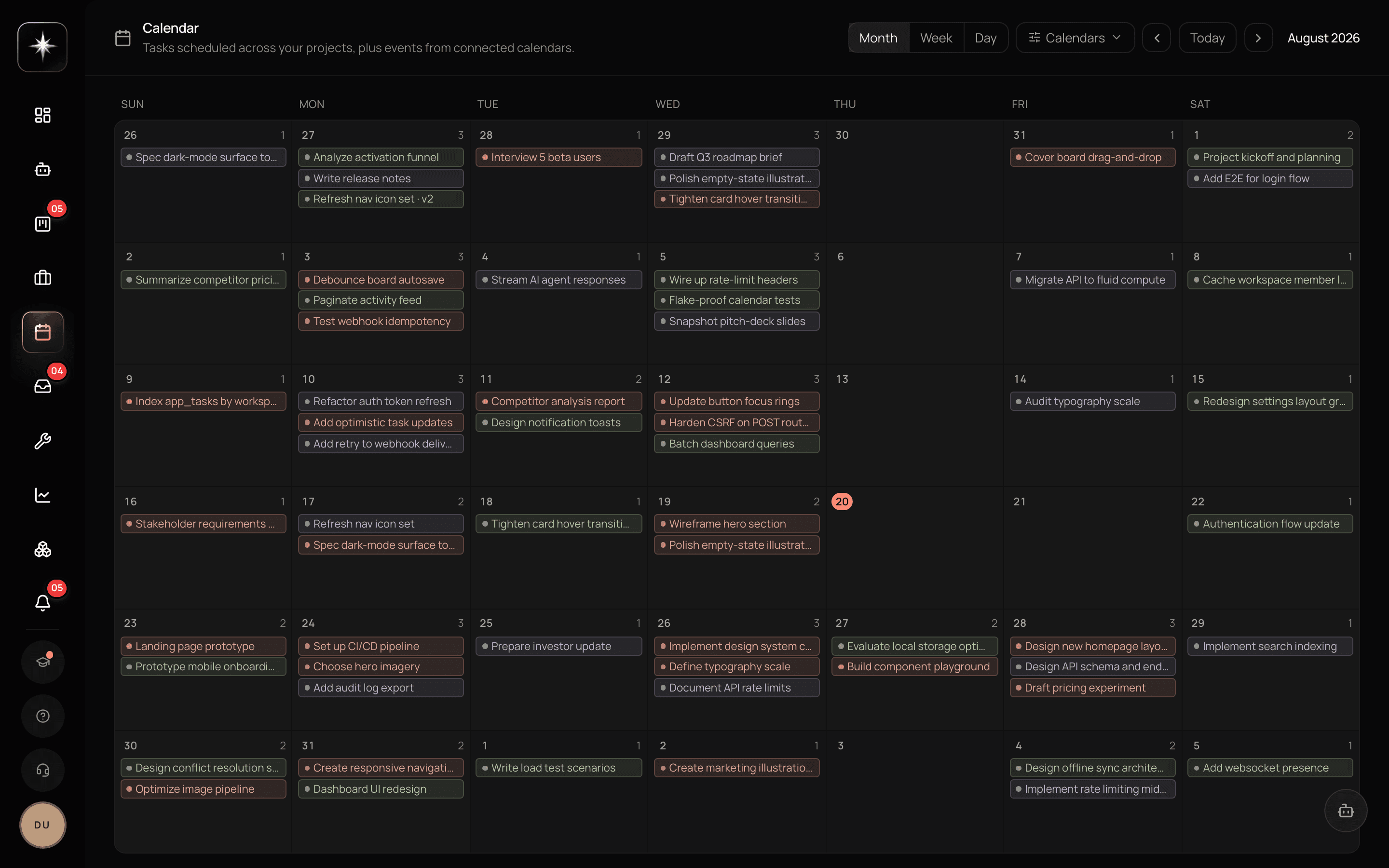
Connect a provider under Settings → Integrations — Google Calendar, Outlook / Microsoft 365, or iCloud. Once connected, the Calendar surface shows events alongside task due dates.
Navigate months from the header and switch between calendar sources. The view auto-refreshes when you focus the tab and when you navigate months, so it does not go stale while you are looking at it.
The combined view is the point. A week with four meetings and three deadlines is a different week from one with seven deadlines and no meetings, and only one surface in the product can tell you which you are in.
What connecting a calendar unlocks
Two things, both larger than the view itself.
Scheduling becomes real. 'Find an hour with Sarah next week' is a question the agent can answer, and 'put it in the calendar' is something it can do, because it can see the calendar. Without the connection the same request produces a suggestion you then have to execute yourself.
Capacity becomes honest. Planning and portfolio capacity numbers get much better when the system knows how much of the week is already committed to meetings. A team of five is not five people's worth of throughput if each of them is in twelve hours of meetings.
That is why this is the first connection to make. Mail is the second.
Duplicates and de-duplication
If you connect two paths to the same underlying calendar — for example a native Google connection and a provider that proxies Google — the same event can arrive twice.
Kavanah de-duplicates at render, so the view stays correct. But the cleaner answer is not to create the situation: decide whether you want the native connection or the proxy, and connect one.
There is a related detail worth knowing if you are ever debugging a calendar that looks incomplete: paging behaviour differs between providers, and a sync that reports success can still have fetched only part of a large calendar. If a calendar with hundreds of events looks thin, the thing to check is how many events actually came through, not whether the connection says Connected.
Task dates on the calendar
Task due dates appear here without any configuration, which makes the calendar a good place to notice that four things land on the same Thursday.
The practical use is a weekly pass: open the calendar in month view, look for the days where deadlines cluster, and move something before the week arrives rather than during it. This takes two minutes and is the single most reliable way to stop a week going wrong.
It also makes the honesty of your due dates visible in a way the board does not. A calendar with a solid wall of overdue markers behind today is a board where the date field has stopped meaning commitment.
Connect and use the calendar
- 1
Settings → Integrations. Google, Outlook / Microsoft 365, or iCloud. Connect one path per underlying calendar.
- 2
Open the calendar and look at next week
Meetings and deadlines together. Note whether next week is a meeting week or a deadline week — they need different plans.
- 3
Once a calendar is connected, 'find an hour with X next week' is a question it can actually answer.
- 4
Look for days where three or more deadlines cluster and move one now rather than during the week.
What to watch
- Committed hours per week
- How much of the week is already meetings, visible once a calendar is connected.
- Healthy signal: Whatever your team decides — but it should be a number you know. Planning against headcount while ignoring this is how sprints get overcommitted.
- Deadline clustering
- Days with three or more task due dates.
- Healthy signal: Few. Clusters are visible a week ahead on this surface and invisible on a board.
- Event completeness
- Whether the number of synced events matches what the source calendar actually holds.
- Healthy signal: Matching. A connection can report healthy while having fetched only part of a large calendar.
Key takeaways
- ·The calendar is the first integration to connect — it is what makes scheduling and capacity real.
- ·Task due dates appear automatically alongside external events.
- ·Connect one path per underlying calendar; de-duplication exists but avoiding duplicates is cleaner.
- ·A connection reporting Connected does not prove every event synced — check completeness on large calendars.
- ·A weekly clustering check on this surface prevents more bad weeks than any other two-minute habit.
Next: work that arrives from outside the workspace entirely — public request pages and how to convert what they collect.