

Module 3 — People, Clients and Deals · Lesson 3.3
Clients and the Client Portal
The account record, health and lifecycle, the spreadsheet grid, and letting customers in safely
What you'll learn
- Create a client with its contacts and link it to projects
- Use health and lifecycle stage as working fields rather than decoration
- Edit accounts inline in the spreadsheet view
- Invite a client contact to the portal and understand what they can see
Kavanah keeps clients next to the work rather than in a separate system, and the payoff is that 'how is Acme doing' is one question rather than three. The cost is that the client record only pays off if it is maintained, which means knowing which fields are load-bearing and which are optional.
The client record
Open Clients from the sidebar. A client is a company, with contacts underneath it, an account owner, a lifecycle stage, a health rating, and links to the projects that serve it.
The links are what make the surface worth having. A client connected to its projects means you can go from 'Acme is unhappy' to the actual work in one click, and it means reporting can answer questions per client rather than only per project.
Contacts are people at the client. They carry the usual details, and they are also who you would invite to the portal or enroll in a deal-room follow-up sequence.
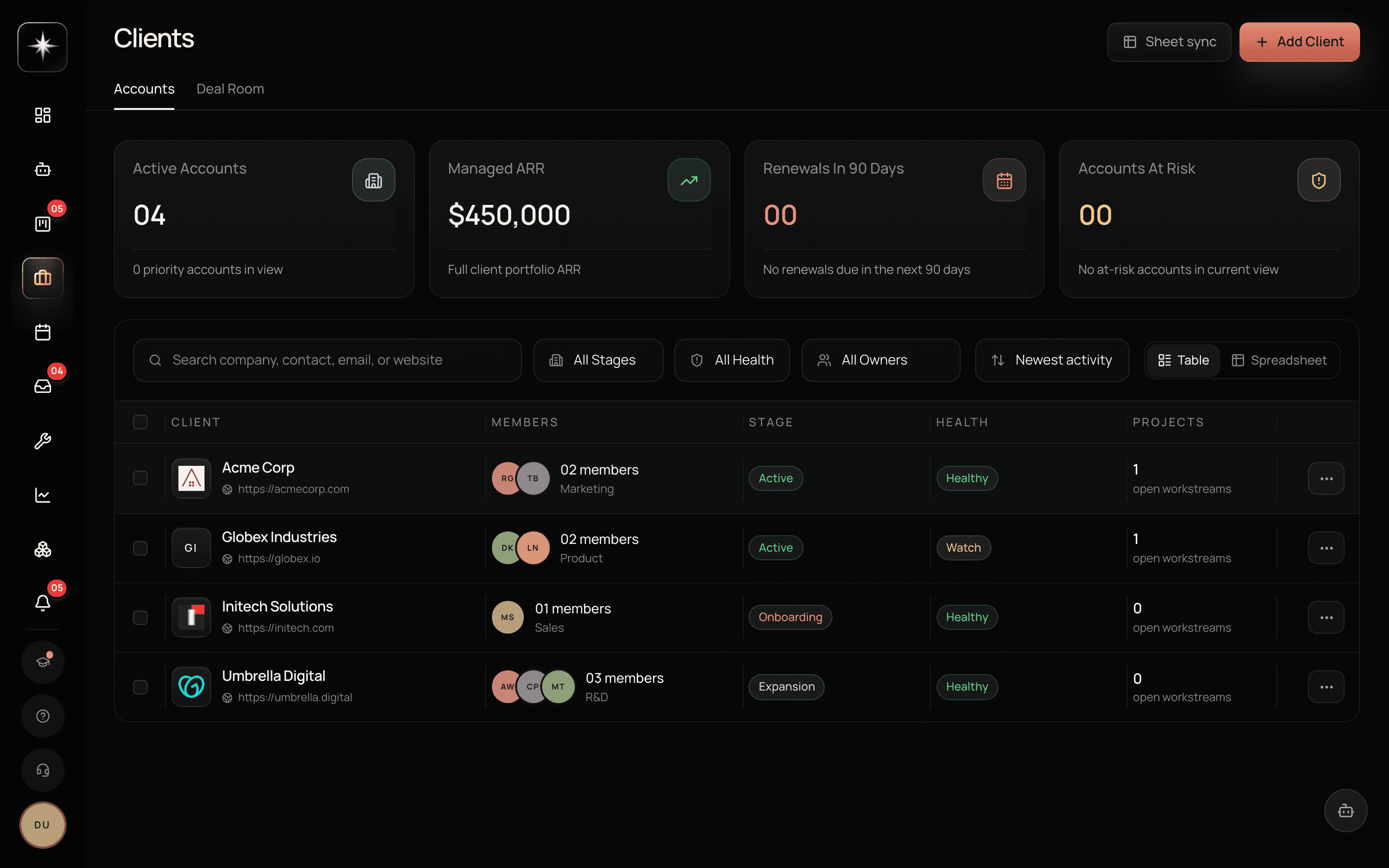
Health and lifecycle: the two fields that earn their keep
Health is Healthy, Watch or At Risk. Three values, deliberately — a five-point scale invites the middle and stops carrying information.
The discipline that makes it useful is that a change should be an event, not a mood. Moving a client to Watch should be something you can point at a reason for, and it should be visible to whoever owns the account. Kept that way, the field answers the only question that matters at the portfolio level: which accounts need attention this week?
Lifecycle stage is where the client is in its relationship with you — prospect, active, renewal, churned, however your business names it. It is the field that makes it possible to distinguish 'we have twelve clients' from 'we have four active clients, six in onboarding and two churned', which are very different businesses.
Account owner is the third of the trio and is exactly what it says: the person who is responsible. Empty account owners are how a client goes quiet for a quarter.
Table and spreadsheet views
The Accounts tab renders as either a Table or an editable Spreadsheet grid, switched with the toggle above the list.
The spreadsheet view is the one to reach for when you are doing a pass over many accounts. Press Edit and you can change owner, stage, health and ARR inline, moving down the list without opening each record. For a quarterly account review this is the difference between fifteen minutes and an hour.
That same tab can also be kept in sync with a Google Sheet — import plus an optional outbound mirror to a separate tab. That is a big enough topic to have its own lesson, and it is the next one.
The Network tab: firms, not just people
The third tab, Network, is the institution layer. A contact is a person; a firm is the thing that writes the cheque, and the questions a capital-markets desk asks — who could fund this, how much do they deploy, who do we already know there — are firm questions.
Each row is a firm with its roles (investor, issuer, broker-dealer), AUM, dry powder, cheque range, thesis, sectors and partner status. Expand one and you get every relationship you hold there: name, title, email, phone, the computed warmth score with the components behind it, and when that person last wrote to you or you to them.
Two buttons sit above the grid. Sheet sync links the desk's own spreadsheet — the partners or investors list — so the sheet, the contacts and the firm records are one list; the import runs hourly and fills gaps without ever overwriting something you edited in Kavanah. AngelSend sync (admins only) schedules the audience directions against AngelSend. Both default to off, and neither writes to your spreadsheet unless you arm the mirror, which always writes to a separate tab.
The client portal
The portal is a separate, narrow surface that client contacts log into. It is not workspace membership: a portal member is not a member of your workspace, cannot see your board, and cannot see anything you have not deliberately exposed to them.
You invite a contact to the portal from the client record. They get their own login, and they see the project view intended for them.
The reason to use it rather than adding a client as a member is not convenience, it is containment. A workspace member is inside the boundary and sees everything their project access allows; a portal member is outside it by construction. For anyone who does not work for you, that difference is the whole point.
Before you invite the first one, look at the portal view yourself and check what it shows. It is much easier to be comfortable with what a client can see when you have seen it.
Set up the client side
- 1
Create a client and link it to its projects
The links are what make 'how is this account doing' answerable in one click.
- 2
Set health, lifecycle stage and account owner on every client
Especially the owner. An empty account owner is how a client goes quiet for a quarter.
- 3
Do a pass in the spreadsheet view
Toggle to Spreadsheet, press Edit, and update owner, stage, health and ARR inline down the whole list.
- 4
Look at the portal before you invite anyone into it
Invite a contact from the client record only after you have seen what the portal shows.
What to watch
- Accounts with an owner
- Share of active clients with an account owner set.
- Healthy signal: All of them. This is the field whose absence produces silent accounts.
- Health freshness
- How recently each client's health rating was reviewed.
- Healthy signal: Within the last month for active accounts. A health field nobody has touched in a quarter says 'Healthy' about accounts nobody has spoken to.
- Client-to-project linkage
- Share of clients connected to at least one project.
- Healthy signal: High. An unlinked client is a contact card; a linked one is an account you can report on.
Key takeaways
- ·Linking clients to projects is what makes per-account questions answerable.
- ·Health has three values on purpose, and a change should be an event with a reason.
- ·The spreadsheet view with inline Edit is the fast path for a review pass across many accounts.
- ·The portal is outside the workspace boundary by construction — that is why you use it instead of adding clients as members.
- ·Look at the portal yourself before inviting the first client into it.
Next: the pipeline that feeds all of this — the Deal Room, its stages, and the follow-up sequences that stop when someone replies.