

Module 2 — Projects and Tasks · Lesson 2.2
The Task Board and Its Views
Board, List and Calendar over the same work — plus filters, grouping, swimlanes and WIP limits
What you'll learn
- Switch between Board, List and Calendar and know which question each answers
- Add a task from any view
- Use filters, grouping and swimlanes to make a large board legible
- Set WIP limits, and understand what they are actually for
Several views over one dataset is a common feature and a commonly wasted one, because most people pick a favourite and never switch. That is a mistake here: the views answer genuinely different questions, and the cost of switching is one click. Three of them carry most of the weight and four are situational, but knowing which is which is the cheapest competence upgrade in the product.
The seven views
Three of them do most of the work.
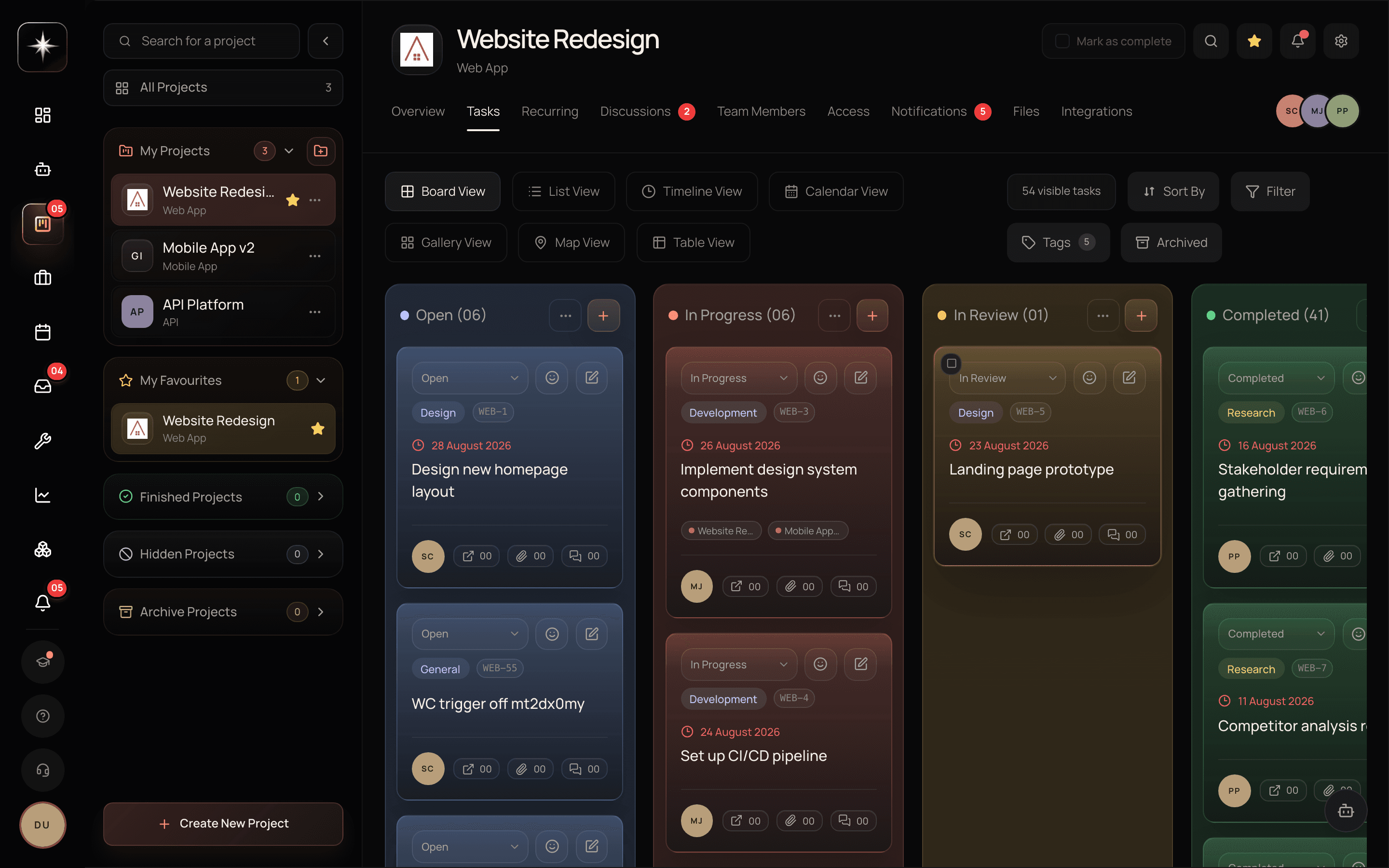
Board is the kanban view: columns are statuses, cards are tasks, and you drag between them. It answers 'what state is everything in?' — where work is piling up, what is stuck in review, whether anything is in progress that should not be. It is the right default for a team running a flow.
List answers 'what is there, and what do the fields say?' — it is denser, sortable, and far better for bulk reading. When someone asks a question that involves comparing many tasks on a field, List is the answer and Board is a slow way to get there.
Calendar lays tasks out by date. It answers 'when is everything due?' — which is a different question from 'what state is it in', and the one that surfaces the week where four things land on Thursday.
The other four are situational, and worth knowing exist so you reach for them when they fit. Timeline lays tasks along a date axis for reading a schedule rather than a status. Table is the spreadsheet-style grid. Gallery is a card grid grouped under the same status columns, which suits work that is visual. And Map plots tasks that carry a geographic location onto an OpenStreetMap view — tasks without a location simply are not plotted, so it is empty and unhelpful unless you are actually tracking work in places.
Switch with the view toggle in the header. Your filter and grouping choices carry across, which is what makes switching cheap.
Adding a task
From Board, click the add-task control at the top of the column you want the task to land in. Creating it in the right column saves a drag and, more importantly, records the correct starting state.
From List, use the add-task row.
From anywhere in the app, press c.
All three open the same form. Title is the only required field; assignee, due date, priority and description are all optional and all useful. The rule of thumb is to type the title while you have the thought and fill in the rest when you triage — capture beats completeness, because an incomplete task exists and a perfect one you did not write down does not.
Making a big board readable
Four controls, in the order you will reach for them.
Filter narrows what is shown — by assignee, status, priority, label, due date, custom property. The single most useful filter is 'assignee = me', which turns the team board into your board without leaving the shared context.
Grouping changes what the columns or rows mean. Grouping by assignee turns a status board into a workload board, which is the fastest way to see that one person has eleven things in progress.
Swimlanes add a second axis — horizontal bands cutting across the status columns. Swimlanes by priority or by epic are the usual choices, and they are what make a sixty-card board scannable rather than exhausting.
Column configuration decides which statuses appear and in what order. If your board shows columns nobody uses, hide them; a board that lies about your process gets ignored.
WIP limits
A WIP limit caps how many tasks may sit in a column at once. Kavanah supports them per column, and they are worth understanding properly because they are widely misread as a productivity nag.
They are not. A WIP limit is a diagnostic. When a column hits its limit, the useful information is not 'someone is doing too much' — it is 'work is arriving here faster than it is leaving', which points at the constraint. A review column that keeps hitting its limit is telling you reviewers are the bottleneck, and no amount of pushing on the people upstream will help.
Set limits generously at first — high enough that they only trip when something is genuinely wrong — and treat a trip as a question rather than a violation.
The archived view
Archiving a task hides it from the board without deleting it. The board has an Archived view for browsing and restoring them.
This is the right way to get noise off a board. A board with two hundred done-and-irrelevant cards is a board people stop reading, and the alternative — deleting them — throws away the completion history that velocity, cycle time and estimate calibration are computed from. Archive is the middle path and it is what you want almost every time.
Learn the board properly
- 1
Switch through the views on a real project
Board, then List, then Calendar, on a project with actual work in it. Notice which question each one answers faster.
- 2
Filter to yourself, then group by assignee
Two clicks that turn the team board into your queue, and then into a workload map. Both are worth having as reflexes.
- 3
If the board has more than about thirty cards, this is the change that makes it scannable.
- 4
Set a generous WIP limit on your review column
High enough that it only trips when something is genuinely stuck. Then treat a trip as a question about the constraint.
What to watch
- In-progress count per person
- How many tasks each person has in a working status at once. Visible immediately by grouping the board by assignee.
- Healthy signal: Our suggested ceiling is around three. Beyond that, context switching is eating the gains, and the real completion rate usually falls even though the board looks busier.
- Column dwell time
- How long tasks sit in each status before moving. Reports has this as cycle time and move history.
- Healthy signal: One column should not dominate. When one does, that column is your constraint, and it is the only place worth optimizing.
- Board hygiene
- Share of visible cards that are actually live work.
- Healthy signal: High. Archive completed work rather than letting the board become an archive people scroll past.
Key takeaways
- ·Board answers 'what state', List answers 'what do the fields say', Calendar answers 'when'.
- ·Add a task in the column it belongs in — it records the right starting state and saves a drag.
- ·Filter, group, swimlanes and column config are what make a large board legible; grouping by assignee is the fastest workload read.
- ·A WIP limit is a diagnostic for where work is arriving faster than it leaves, not a productivity nag.
- ·Archive completed work — deleting it throws away the history velocity and calibration need.
Next: the task itself, field by field, and what each one actually drives elsewhere in the product.